
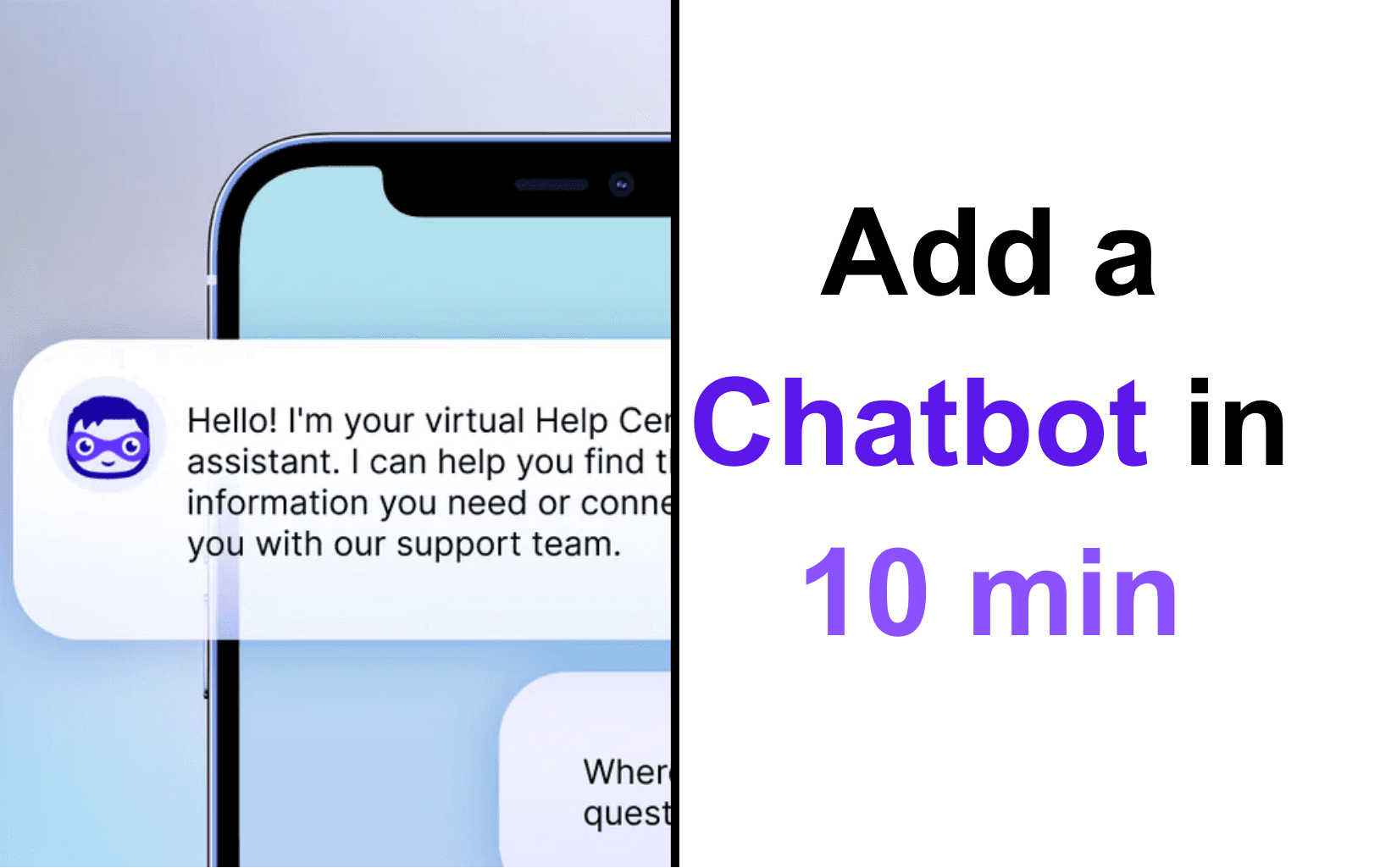
Ten minutes is not a marketing exaggeration here. If your content is ready and you've chosen a platform, adding a chatbot to your website is a two-step process: generate an embed code, paste it into your site. That's it.
This guide covers the full flow — from choosing a platform to having a working chatbot visible on your site — with instructions for the most common website platforms.
Before You Start: What You'll Need
You need three things before the 10-minute clock starts:
- A chatbot account with a configured and tested chatbot
- Your website's CMS credentials (admin access)
- 10 minutes of uninterrupted time
If you haven't set up your chatbot yet, that part takes longer — but it's a one-time investment. Once your chatbot is trained and ready, every future update or redeployment is fast.
Step 1: Get Your Embed Code
In most chatbot platforms, there's a section called something like Deploy, Embed, or Install. Navigate there and you'll find a snippet of code — usually just a script tag — that you copy.
In Umiplex, this is under Settings > Embed. The code is a two-line script tag with a unique ID for your chatbot. Copy the whole thing exactly.
Step 2: Add It to Your Website
How you add the code depends on your website platform:
WordPress
Go to Appearance > Theme Editor > header.php, or use a plugin like "Insert Headers and Footers" to paste the code without editing theme files directly. Paste just before the closing </body> tag.
Shopify
Go to Online Store > Themes > Edit Code > theme.liquid. Paste the embed code just before the closing </body> tag.
Squarespace Go to Settings > Advanced > Code Injection. Paste the code in the Footer section.
Webflow Go to Site Settings > Custom Code > Footer Code. Paste the embed code there.
Wix Go to Settings > Custom Code > Add Code. Set it to load on all pages in the body section.
Step 3: Verify It's Working
After saving, visit your website in a fresh browser window (or incognito mode). You should see the chatbot bubble appear — usually in the bottom right corner. Click it and send a test message.
If it doesn't appear, the most common causes are:
- The code was pasted in the wrong location
- A caching layer hasn't refreshed yet (wait a few minutes and try again)
- A Content Security Policy on your site is blocking external scripts (this needs a developer to fix)
Customizing the Appearance
After the initial deployment, most platforms let you adjust the visual details — bubble color, position, greeting message, and the initial prompt displayed to users. These settings live in your chatbot platform's dashboard, not in the embed code, so you can adjust them without touching your website again.
Take 15 minutes to set these up properly. The default appearance and greeting are generic; a customized version that matches your brand and speaks directly to your customers makes a meaningful difference in engagement.
Where to Put It for Maximum Impact
The bottom-right chat bubble works well as a universal placement, but you can also embed the chatbot more prominently on specific high-value pages:
- Checkout and cart pages — where purchase hesitation happens
- Pricing page — where the most common pre-sale questions arise
- Contact / Support page — to deflect tickets before they're submitted
- Product pages — to answer spec and compatibility questions instantly
An inline chatbot widget on these pages — not just a floating bubble — captures significantly more conversations from visitors who wouldn't have clicked a chat icon on their own.