Workspace Settings
Manage workspace details, team members, billing, and subscription plans for your Umiplex account.
General
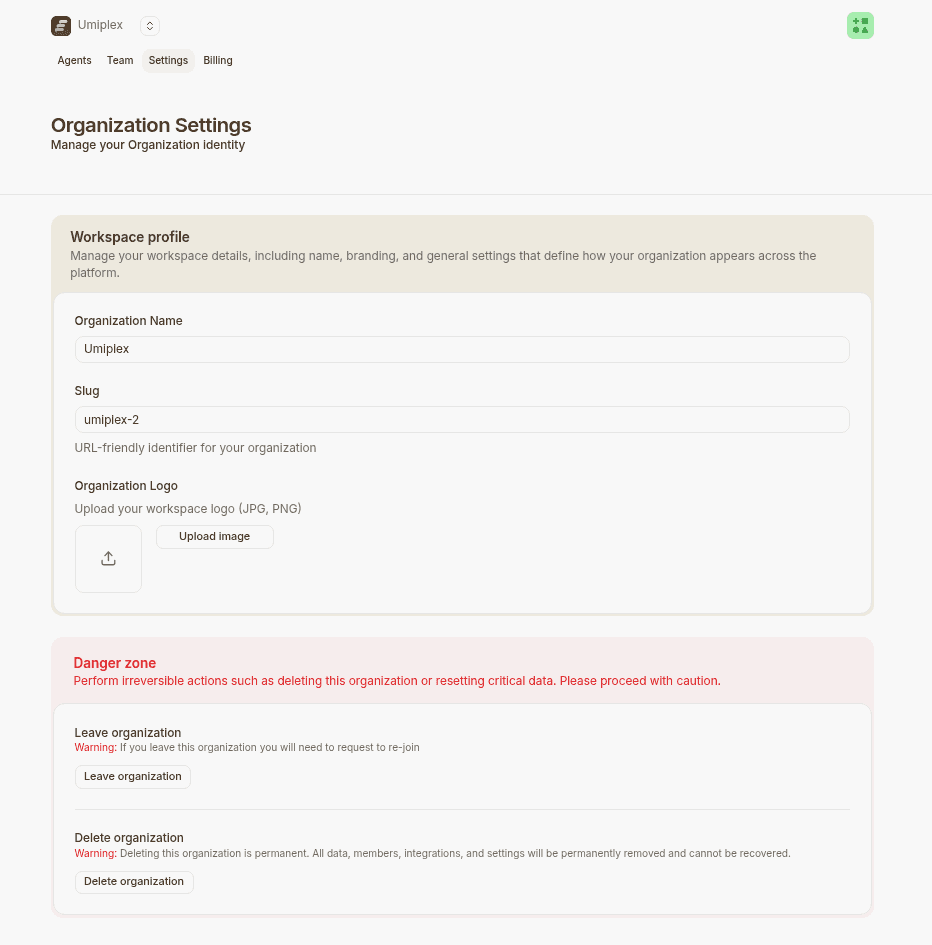
This tab provides general information about the agent, including the Workspace Name and Workspace URL. The Workspace Name is displayed on the dashboard and in the AI agent path, while the Workspace URL appears in the address bar when accessing the workspace or its agents.
To modify the name or URL, simply edit the text in the field and click "Save."
You can also delete the entire workspace and all its AI agents by clicking the "Delete" button at the bottom of the page.
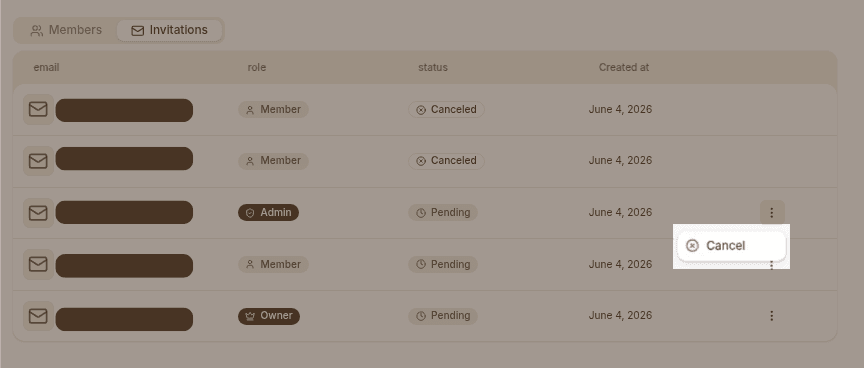
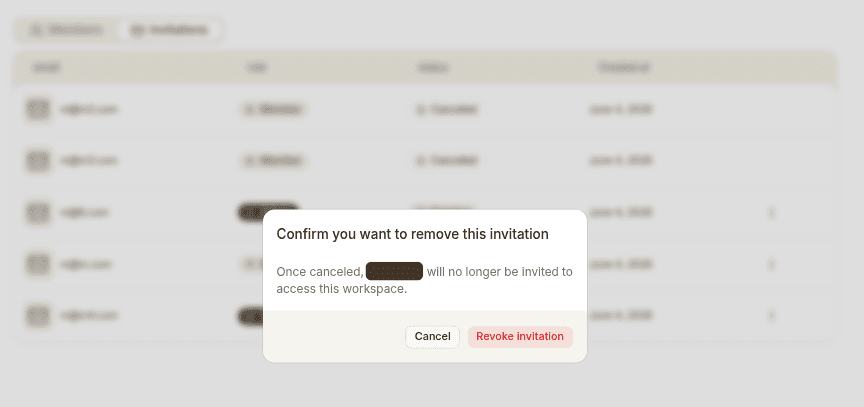
Invitations
Send Invitation
Revoke Invitation
Members
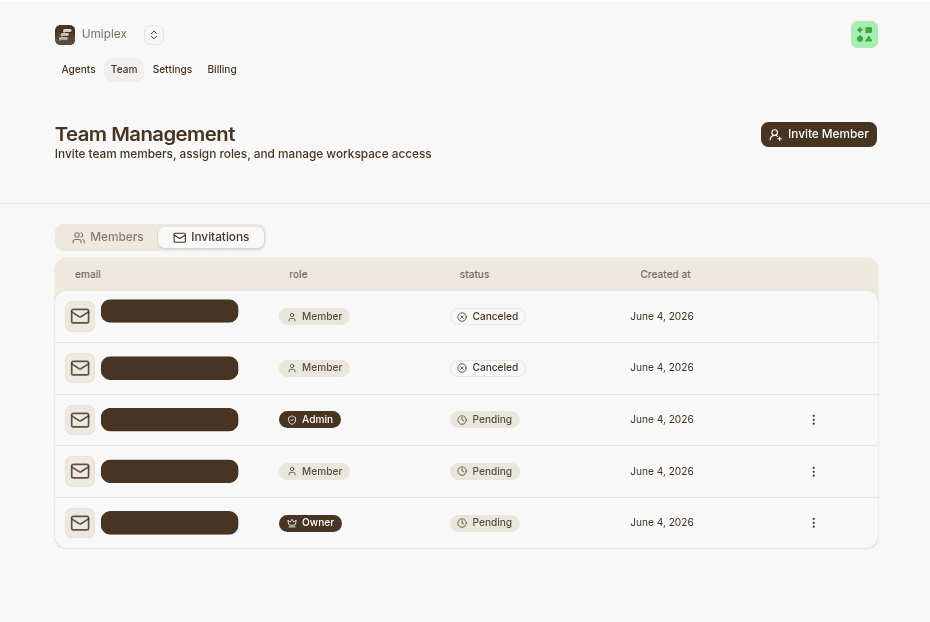
This tab displays all the information about your organization members, as well as those you've invited but haven't responded yet.
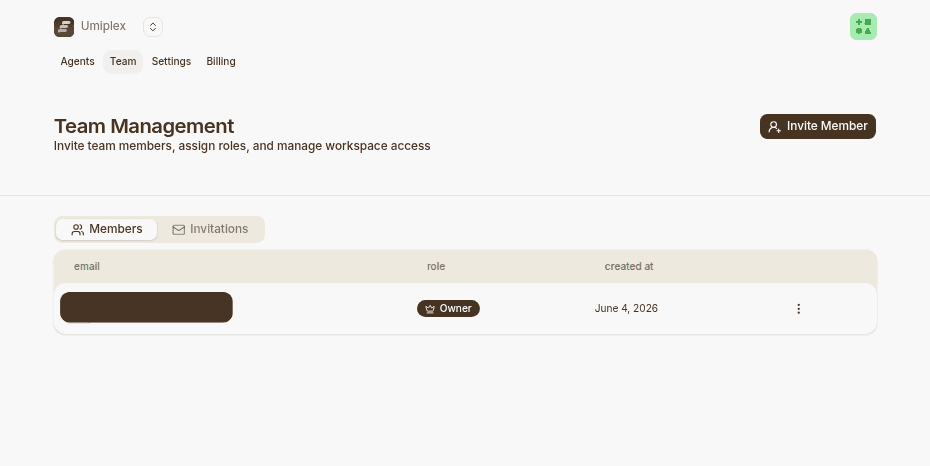
Modify workspace member role
To modify a workspace member's role or remove them, click the three dots next to their name.
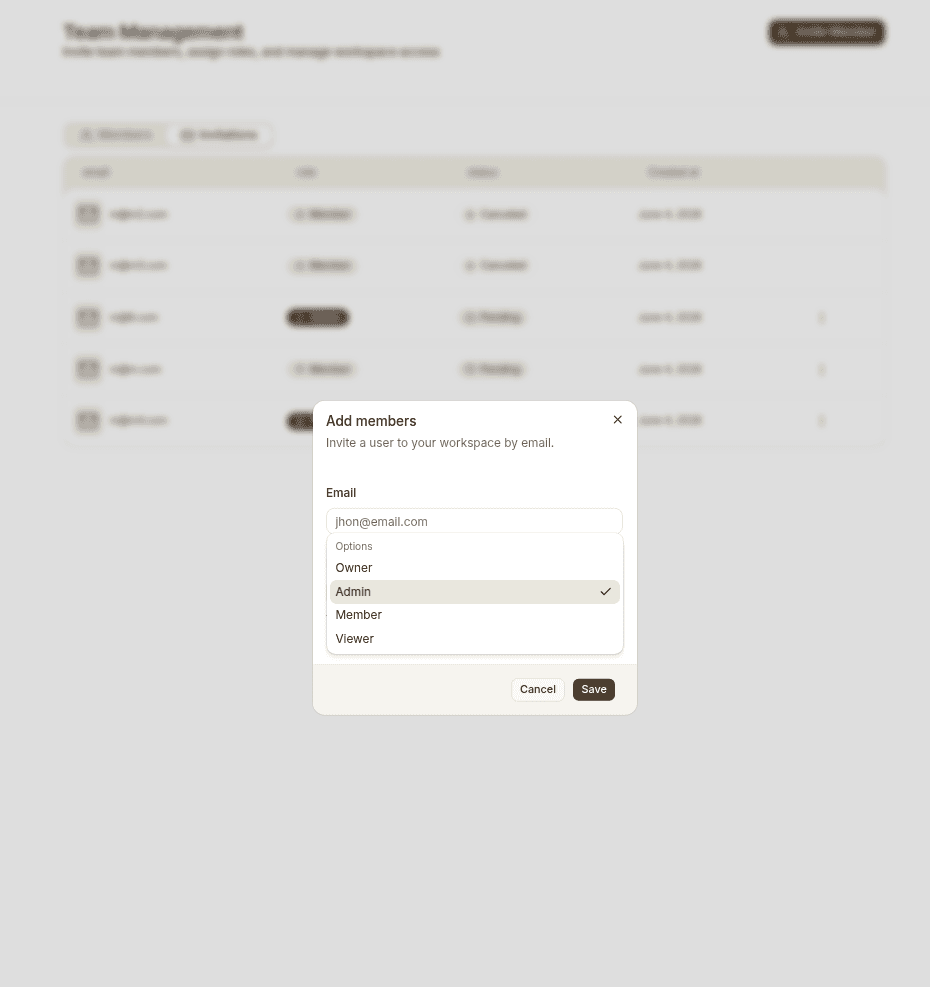
- Owners: Can change billing information, modify plans, rename or delete the workspace, and manage all AI agents within the workspace.
- Members: Can update training data, view analytics, and delete AI agents. They cannot alter workspace settings.
- Viewer: Provides read-only access to view resources and analytics. Users cannot modify any settings, but they can still test the agent through the playground and compare sections.
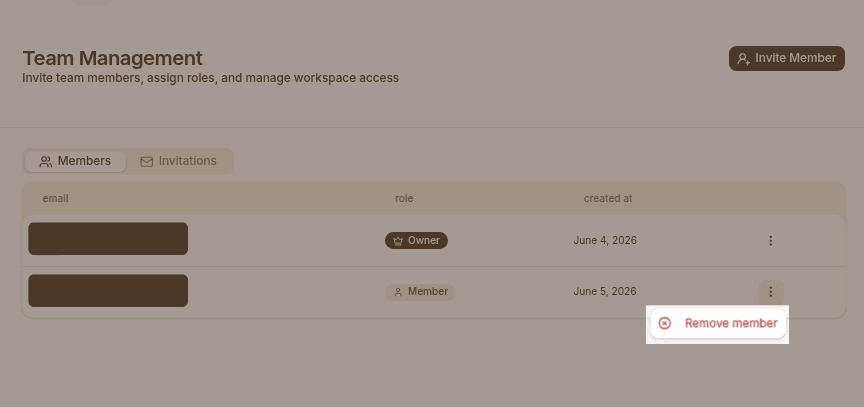
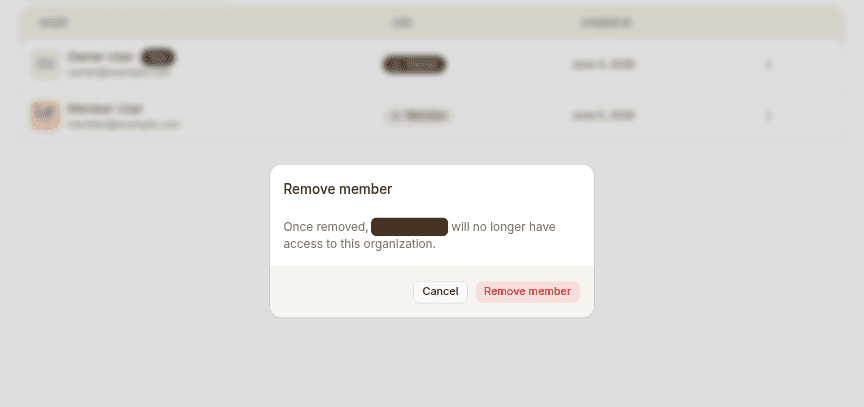
Remove workspace member
To remove a member from the workspace
Plans
This tab provides information about all available plans and lets you modify your current plan or add new add-ons.
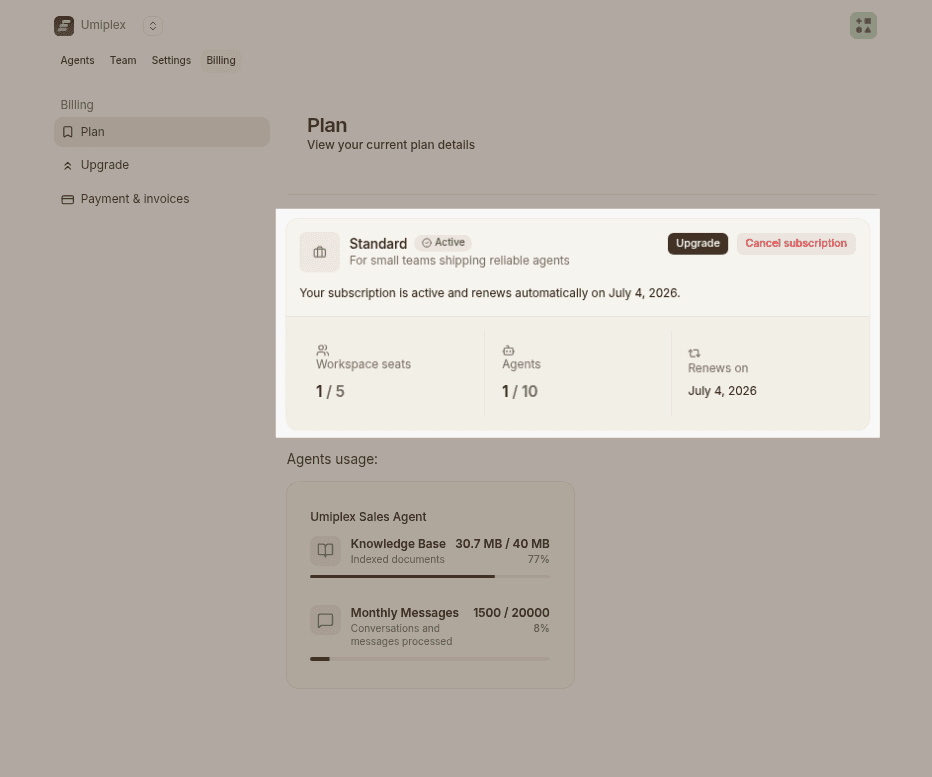
Current Plan
This section is optional and will only appear if you're on a legacy plan. It provides details about the current plan, including your allowed features and limits.
Available Plans
This section displays all available plans for subscription. You can switch between monthly and yearly by toggling the option. It's important to note that subscribing annually lets you pay for 10 months instead of 12.
For more details about the available plans, please check out our Pricing page.
Please note that if you're on the old pricing packages, you won't be affected unless you want to upgrade your payment to annual or change the plan.
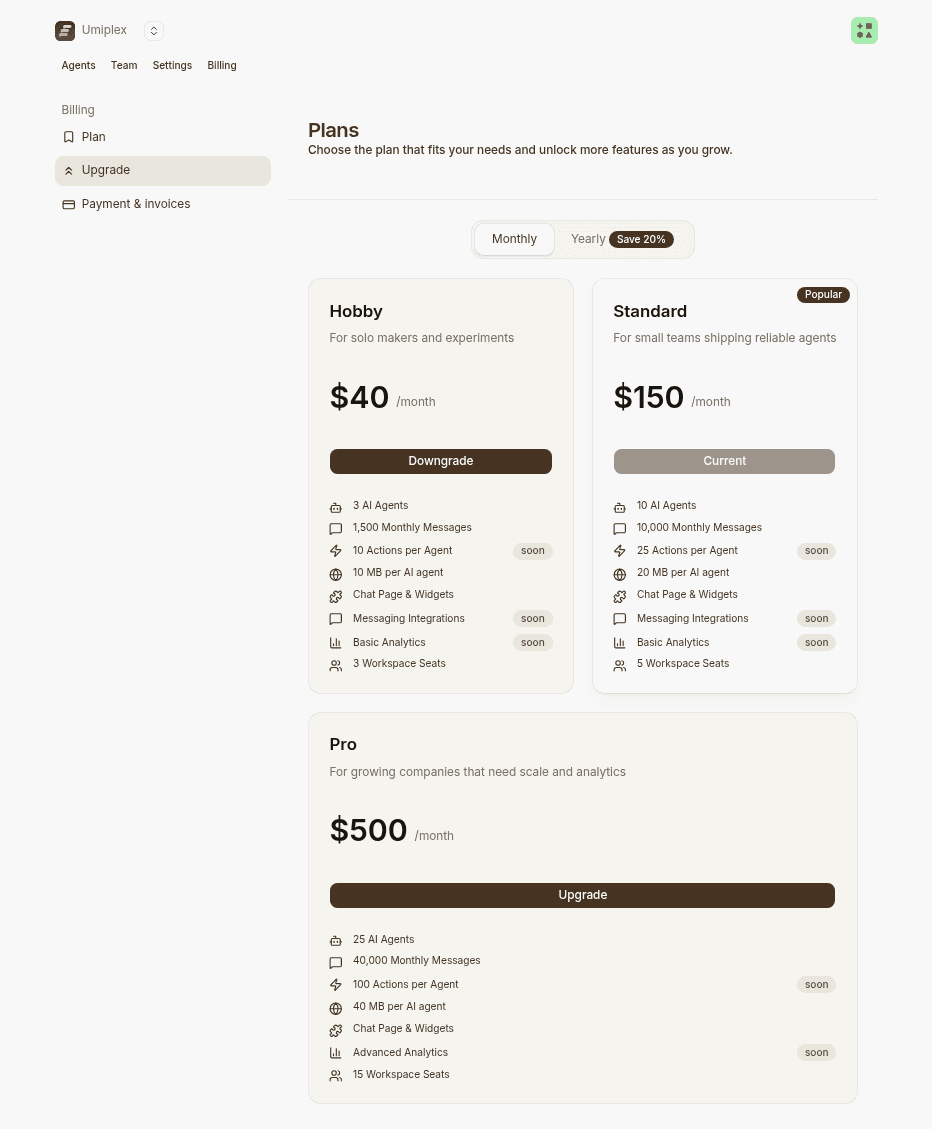
If you choose to downgrade to a lower plan, such as from Standard to Hobby, the downgrade will take effect immediately. You'll receive a prorated credit based on the remaining time on your current plan, which will be applied to your new plan and any future invoices until the credit is used up.
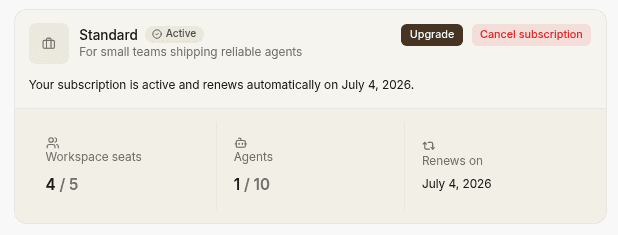
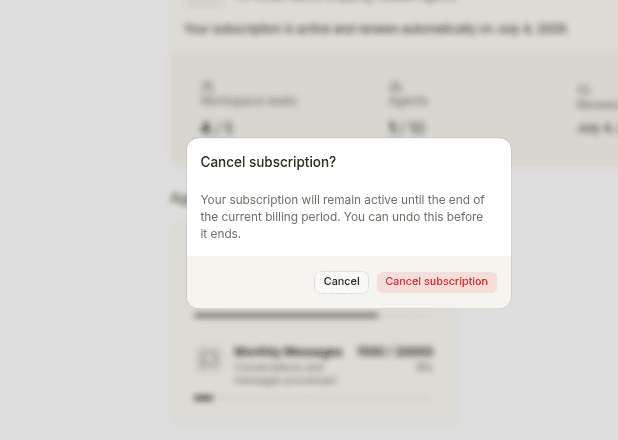
Clicking "Cancel Plan" under your active plan disables auto-renewal. Your current plan will remain active until the next renewal date, after which you'll be downgraded to the free plan to avoid further charges. Your addons will also be active until the end of your billing period then removed when the plan expires.
Note: Legacy plan users can now see the "Cancel Plan" button, as their active plan is listed. To downgrade to the free plan, please click on the cancel plan button, as shown below:
This section displays your billing details, including the email addresses receiving invoice copies, the data on the invoices, the payment methods used, and all past invoices.
Billing Portal
Billing This section displays your billing details, including the email addresses receiving invoice copies, the data on the invoices, the payment methods used, and all past invoices.
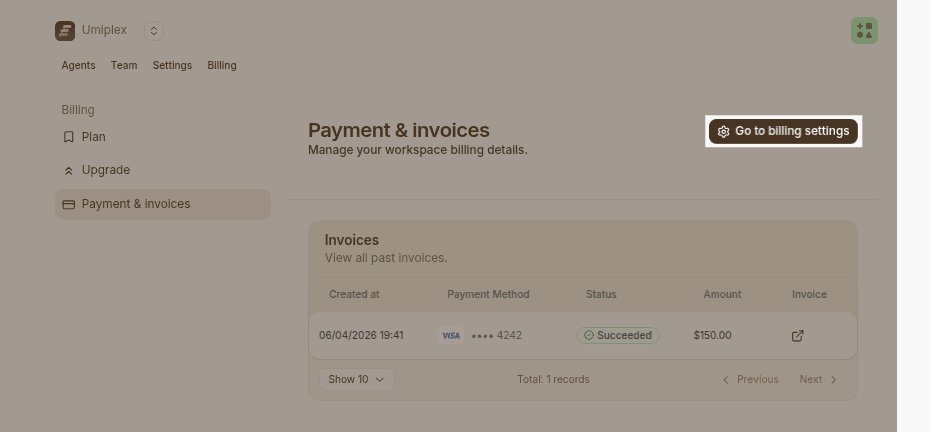
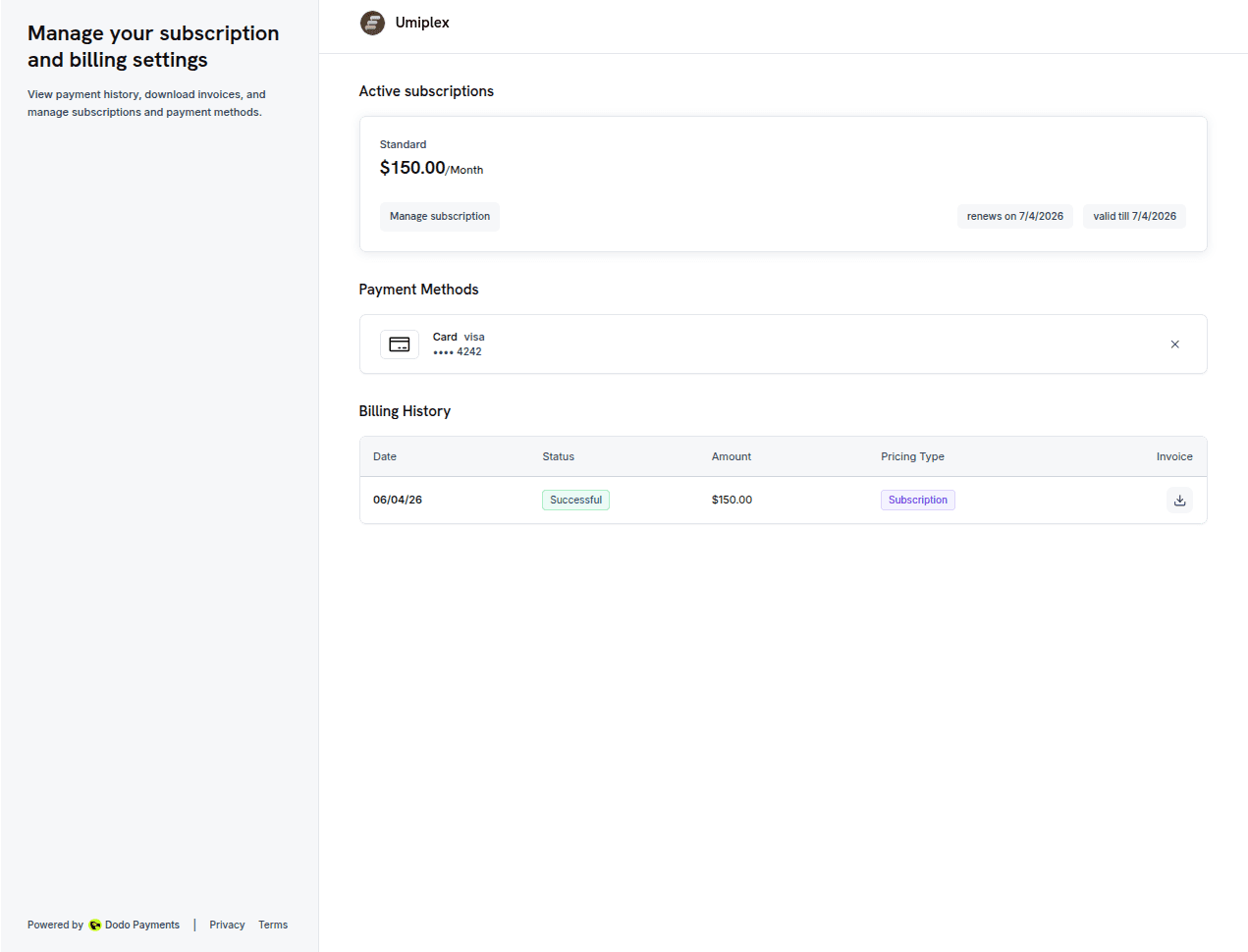
Billing Details
This section displays your billing information, this information will appear on your invoices. You can edit it as needed and click "Save" to update the details.
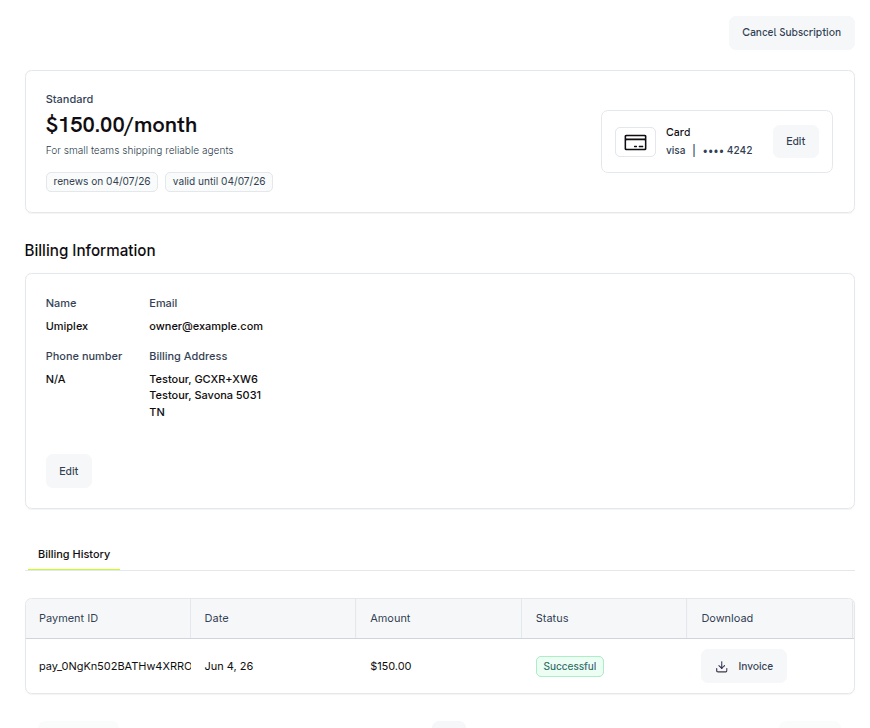
Billing History
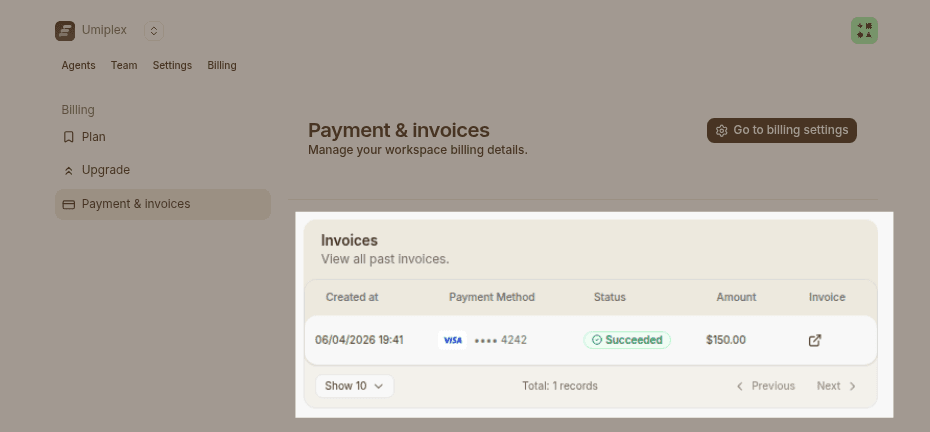
In this section, you can view all your past invoices along with their statuses. Click on an invoice to view it, and you'll also have the option to download it.